Our system integrates seamlessly with Zapier, enabling powerful automation by sending detailed booking data directly to your chosen apps and workflows. This integration allows businesses to streamline their operations by automatically capturing and processing guest and reservation details in real time.
What Our System Sends to Zapier
When a booking is made, our system pushes a comprehensive set of data points to Zapier, ensuring you have all the information you need to power your automated processes. Here's a breakdown of what is included:
Reservation-Level Data
Full Name
First Name
Last Name
Customer Email
Telephone Number
Address
Zip Code
City
State
Country
Check-In Date
Check-Out Date
Number of Nights
Guest Requests
Booking Reference
Channel Booking Reference
Channel (e.g., Booking.com, Airbnb)
Amount of Rooms Booked
Total Due
Total Booking Amount
Amount Paid
Credit Card Present (Yes/No)
Property Details:
Property Name
Property Address
Property Town
Property Postal Code
Room-Level Data (For Each Room in the Reservation)
For each individual room within a reservation, the following guest-specific information is sent:
Check-In Date
Check-Out Date
Guest Full Name
Guest First Name
Guest Last Name
Guest Email
Guest Phone Number
Guest Address
Guest Zip Code
Guest City
Guest State
Guest Country
Why It Matters
By delivering this level of detail through Zapier, the properties can:
Send automated confirmation emails or SMS messages.
Sync booking data with CRMs, spreadsheets, or calendar apps.
Trigger personalized follow-ups and marketing campaigns.
Log and report financial and operational data in real time.
Coordinate housekeeping or front-desk schedules with accurate guest and room data.
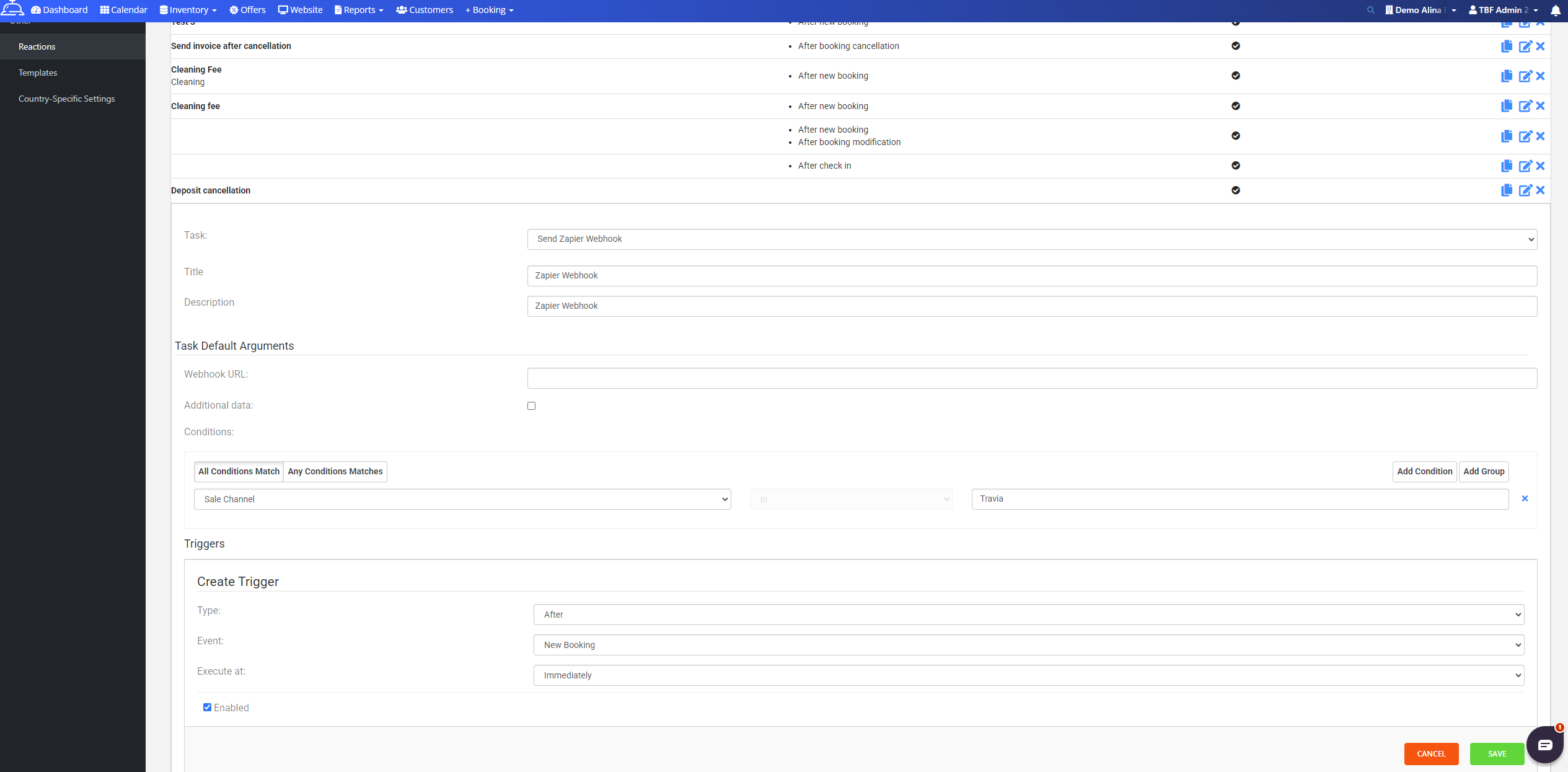
How to set up the reaction in Booking Factory
The reaction for Zapier can be created from Settings - Other - Reactions.
Title: Defined by the customer
Description: Optional; set by the customer
Webhook URL: Generated in Zapier using the “Catch Hook” event
Conditions: Optional; can be added if specific criteria are needed
Trigger: Typically set to after a new booking, but other options are available, such as after modification, cancellation, before/after check-in, or before/after check-out - it depends on the type of the tasks set up in Zapier
Was this article helpful?
That’s Great!
Thank you for your feedback
Sorry! We couldn't be helpful
Thank you for your feedback
Feedback sent
We appreciate your effort and will try to fix the article