Who sets up the connection:
The setup of the connection is done in Booking Factory. The customer should be able to do it but we usually assist or set it up. Some settings need to happen in DK to be able to make the connection.
How does the connection work:
DK will get the data from Booking Factory every time a reservation folio is changed from a folio status to a receipt. As soon as the hotelier changes the status of the folio, the reservation will flow over to DK (maybe 1-2 min later).
You can double-check if the reservation did go over to DK in a Booking Factory Report called Folio Report.
This means that the front desk will need to either make sure to change the status of the reservations as soon as they check out OR go over the checked-out list once a day and change all of the reservations from folio to receipt.
What needs to be done in Booking Factory:
1. Navigate to System Settings - Hotel Features
Tick the box for - Enable Accounting Categories Feature
2. Navigate to Finance - Accounting Categories - Create Accounting Categories
Instructions are in Icelandic and they can be sent to customers directly as they should be able to set up this connection...
Several steps need to be followed to connect DK to Booking Factory.
Summary:
Receive the Bearer token from DK, insert it into Booking Factory, and choose how the connection should work
Create the seller pms in DK
Create DK connection in Booking Factory
Create accounting categories in Booking Factory for Rates and Extras and connect them to DK with a product number
Create accounting categories in Booking Factory for payment methods and connect them to DK with payment case numbers
Attach the right accounting category to Extras in Booking Factory
Attach the right accounting category to Custom Payment Types in Booking Factory
Attach the correct accounting category to Rate Plans in the Booking Factory
NOTE: BF Support does not take responsibility for the DK set-up. We are not allowed to access their DK accounts and different properties can have different needs as far as detailed Accounting Categories etc. Therefore we always strongly encourage them to review everything as soon as the setup is done on BF side.
Step-by-step instructions
DK settings
Receive a Bearer token from a DK employee
You have to start creating the employee pms (with lowercase letters) under:
Starfsmenn - Starfsmenn - INS Ný
It is enough to enter the number and name in the columns.
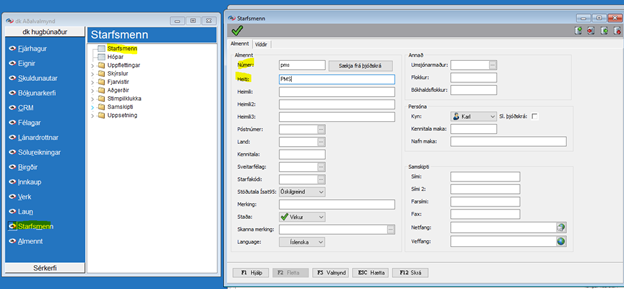
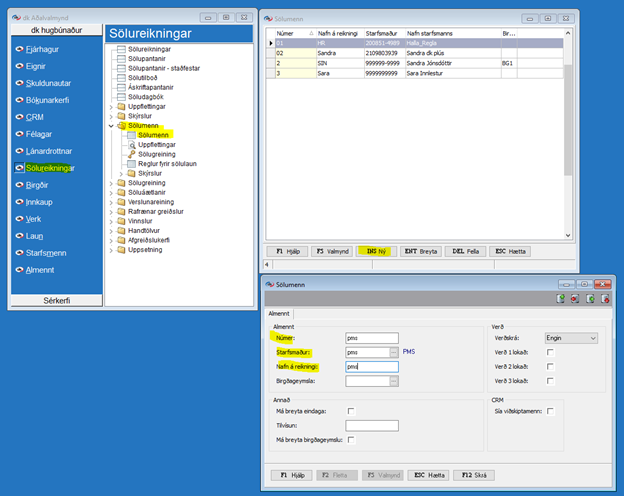
3. Next, the salesperson pms is created under: sales accounts - salesmen - INS NÝ - columns number, employee, and name on the invoice are filled in.
Booking Factory - settings
1. The first step is to add the bearer token received from DK in: Settings - Finance - Accounting Systems - Add Accounting system - Select DK -
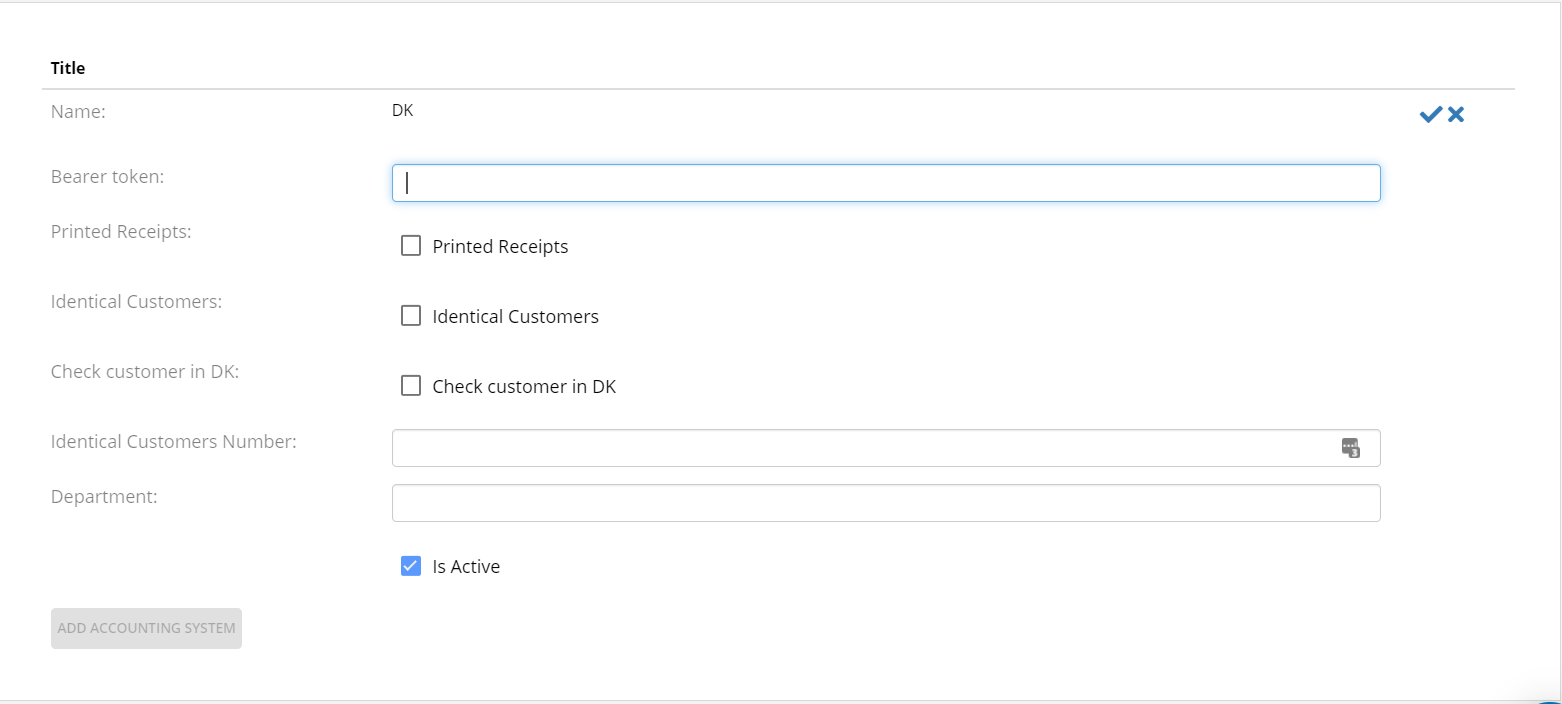
Bearer Token: code obtained from a DK employee.
Printed Receipt: If this box is checked, the invoices will be transferred to DK as printed invoices. If invoices are to flow unprinted to DK, then this box is left unchecked.
Identical Customer: This field is intended for those who want to use cash on delivery in DK for all individual bookings or all bookings that do not go to a company ID number.
Check customer in DK: If this box is checked, Booking Factory checks whether a customer already exists in DK, if he does not exist, an error message appears in the folio report and the invoice is not transferred to DK until a customer is created in DK . If this box is not checked, Booking Factory creates a new customer in DK with the ID number registered in Booking Factory. Debtors connect between the systems with a debtor number in DK to a National ID Number in Booking Factory. This means there is likely to be a "clean-up" effort on the DK side where several more than one profile for the same customer need to be merged.
Identical Customers Number: This only applies if the Identical customer field is checked, then the ID number of the cash-on-delivery customer from DK must be entered here (usually 0000000000 or 9999999999)
Department: If the DK account has several departments, the number of the department must appear in this field.
Remember to check Is Active before saving.
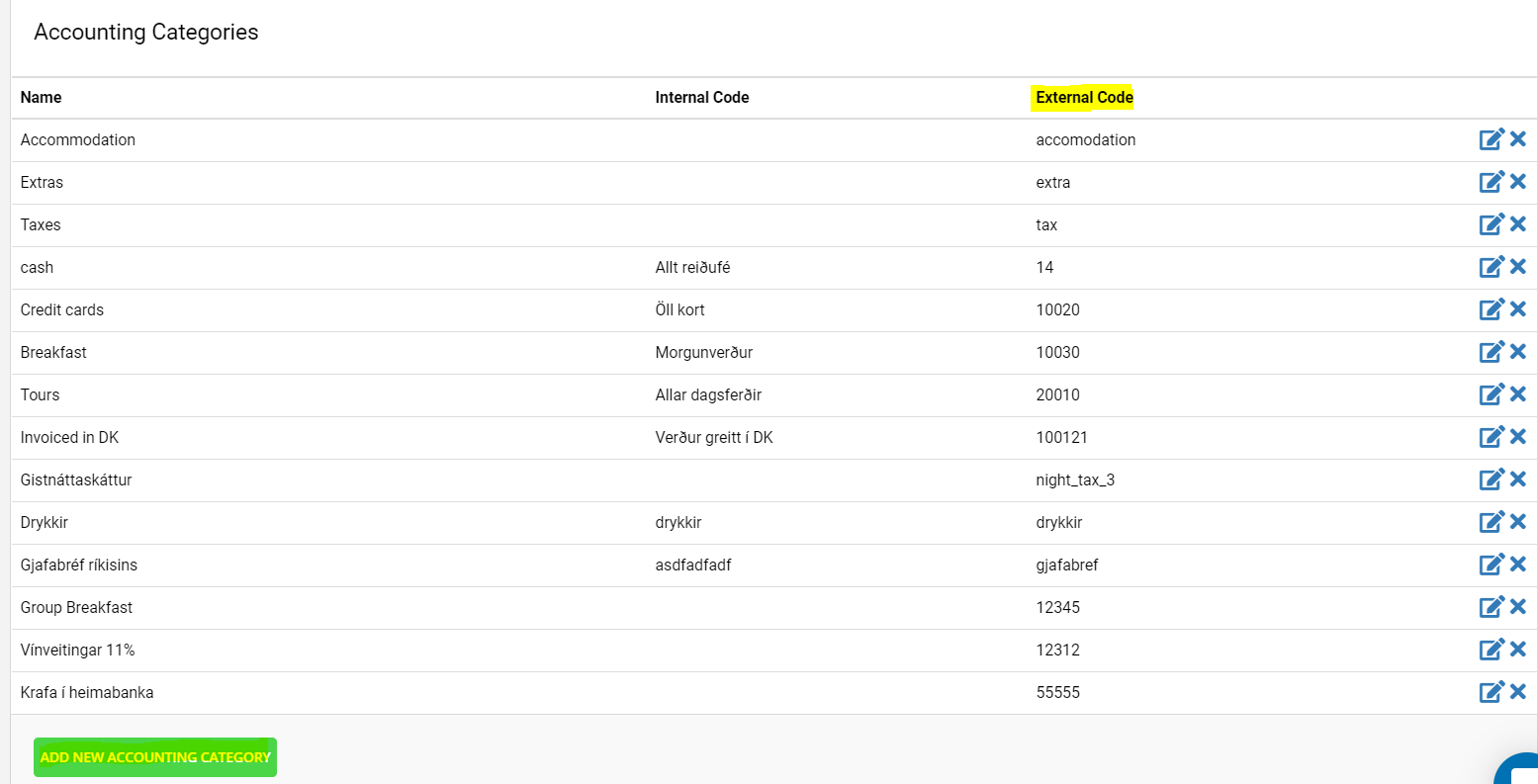
2. Next you have to set up all the accounting categories to be connected to DK: Settings - Finance - Accounting Categories - Add new accounting category.
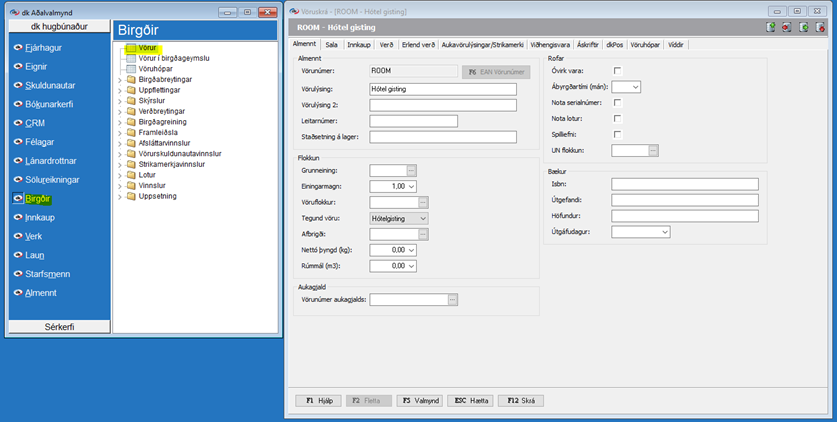
The external code must be linked to a product number in DK (if a product number does not already exist, it must be created in DK)
This is what the hotel accommodation product could look like in DK, see the picture. In this example, the external code in the Booking Factory would be ROOM
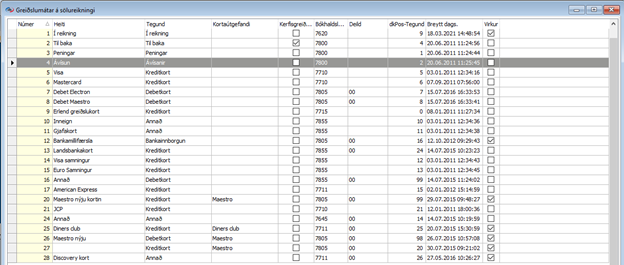
3. The number of the payment method in DK must be linked to the external code of the payment method in Booking Factory. The payment method number can be accessed under sölureikningar - verslunareining - greiðslumátar
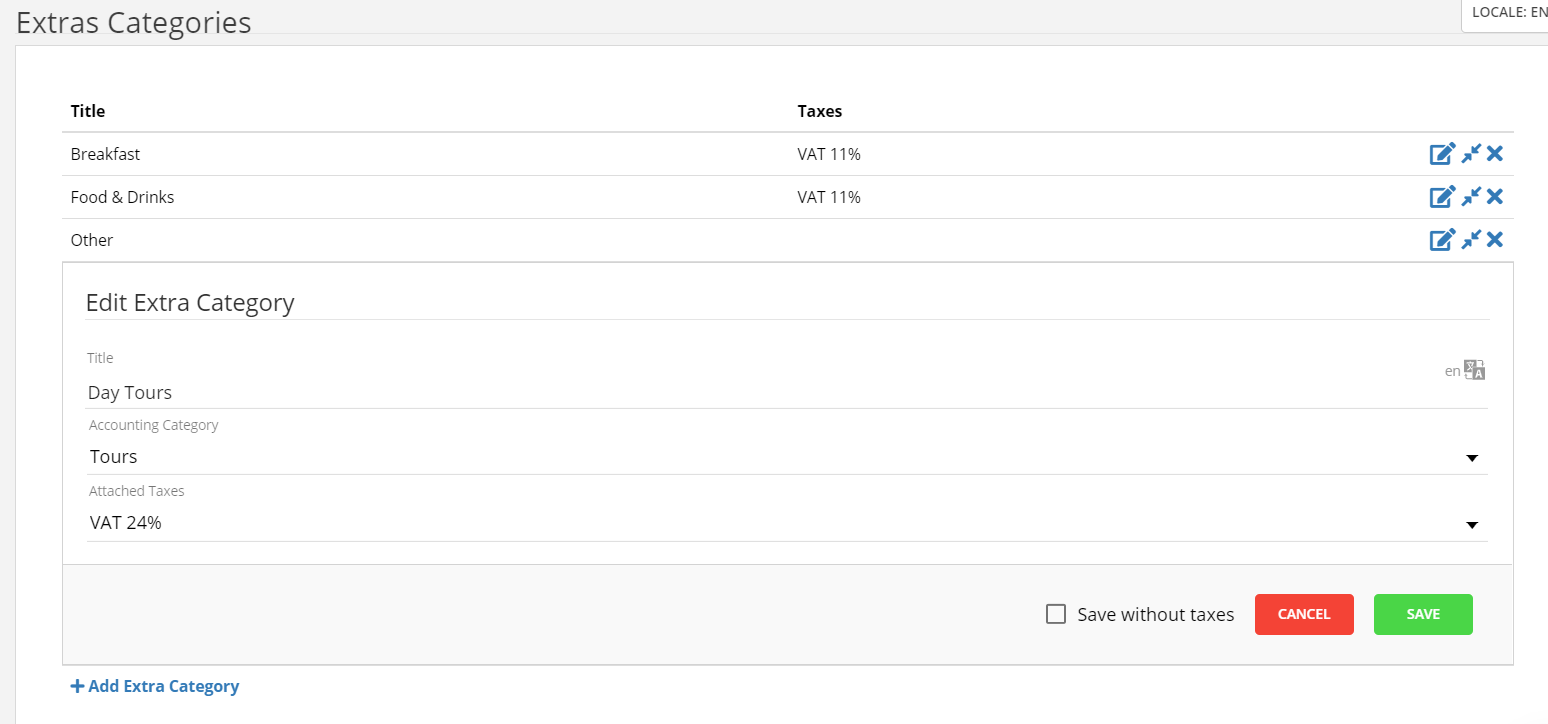
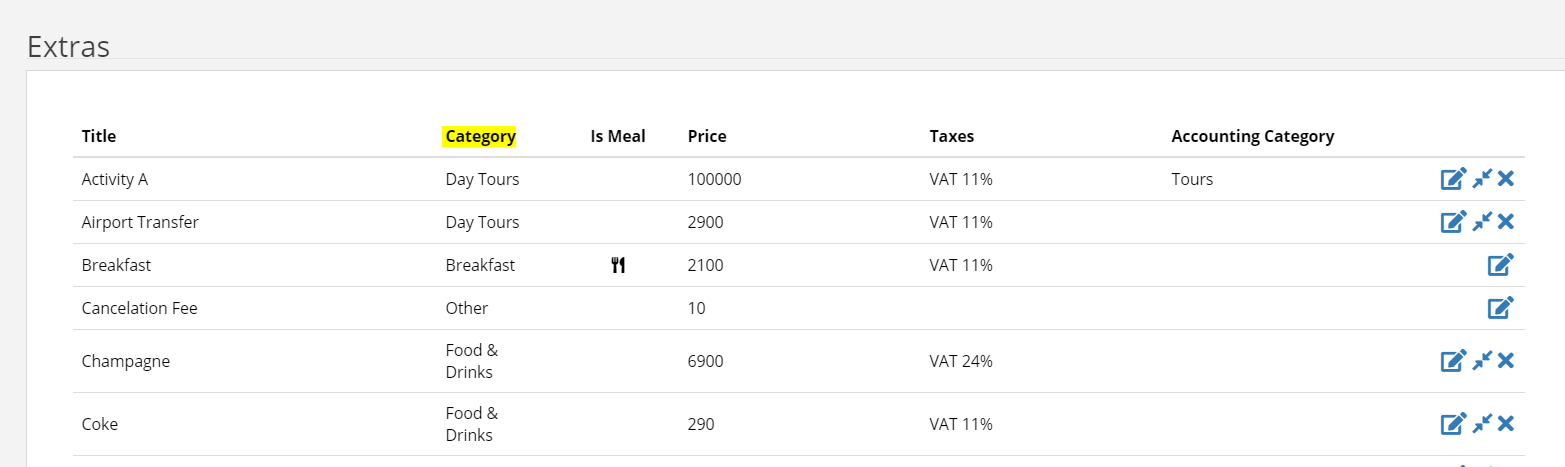
4. Attach the right accounting category to Extras in Booking Factory Settings - Hotel Content - Extras.
You can have extra supercategories connected to the accounting category.
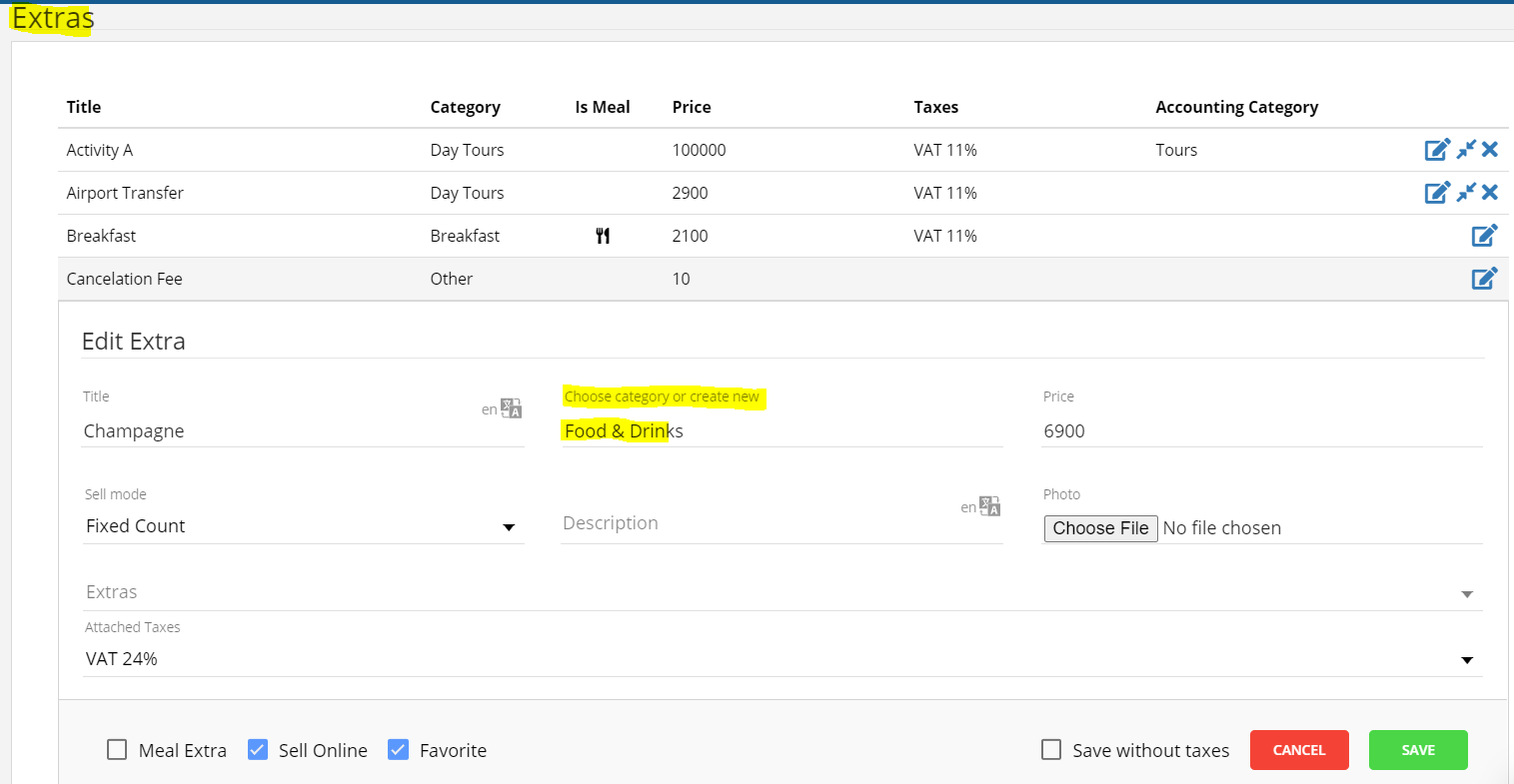
Each single extra (extra object) is then connected to an extra superclass.
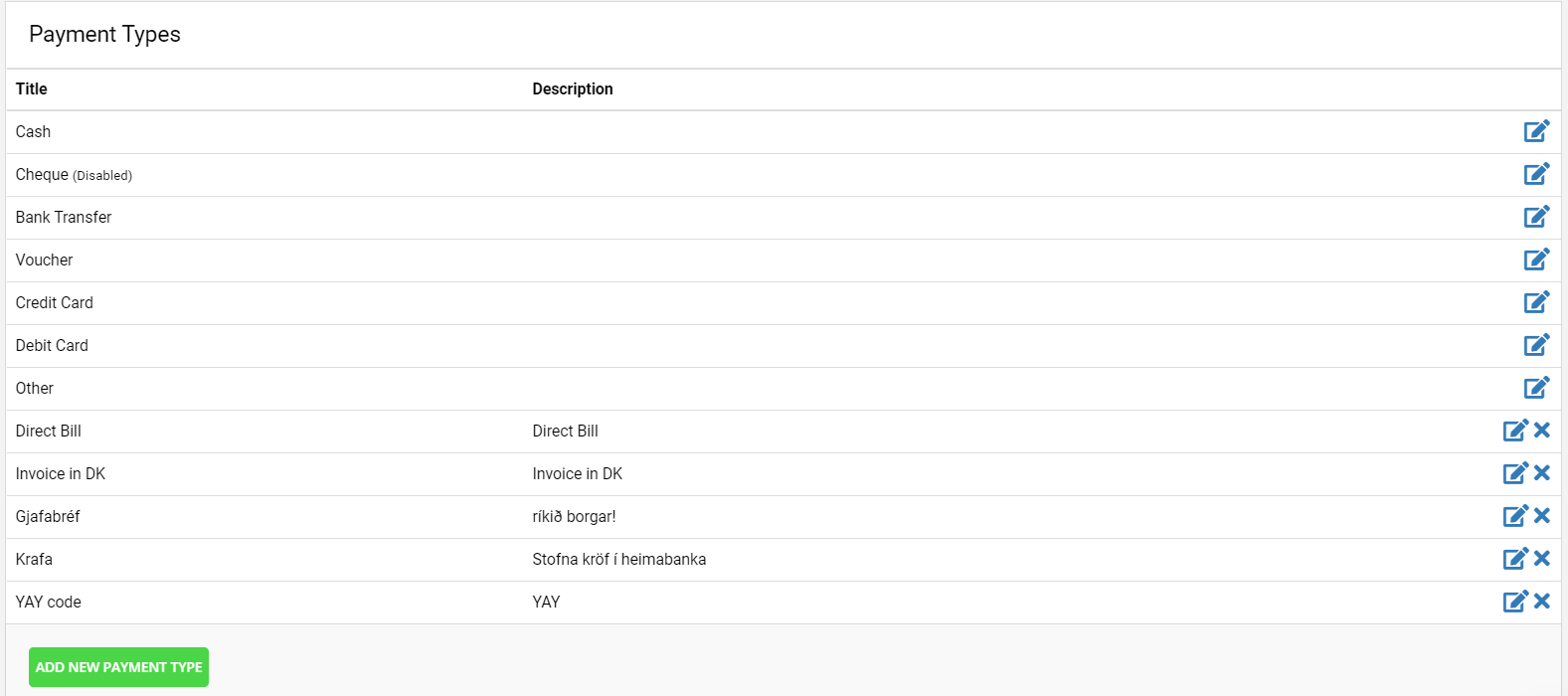
5. Attach the right accounting category to custom payment types in Booking Factory
Settings - Finance - Custom Payment Type - click on edit and attach the correct accounting category to the payment type.
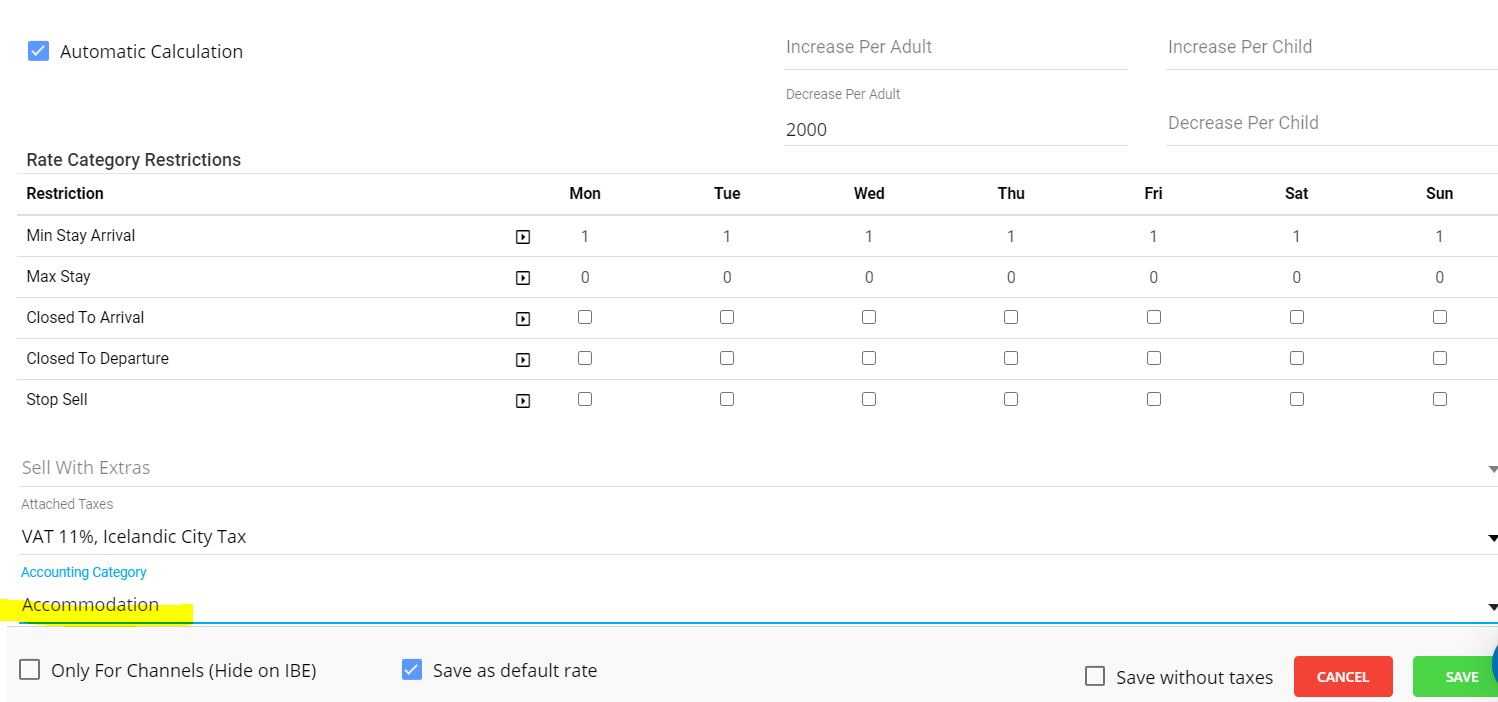
6. Attach the right accounting category to rate plans in Booking Factory.
When a new rate plan is created, an accounting category must be attached to each rate plan, this is at the bottom under Accounting Category
Settings - Inventory - Rate Plans
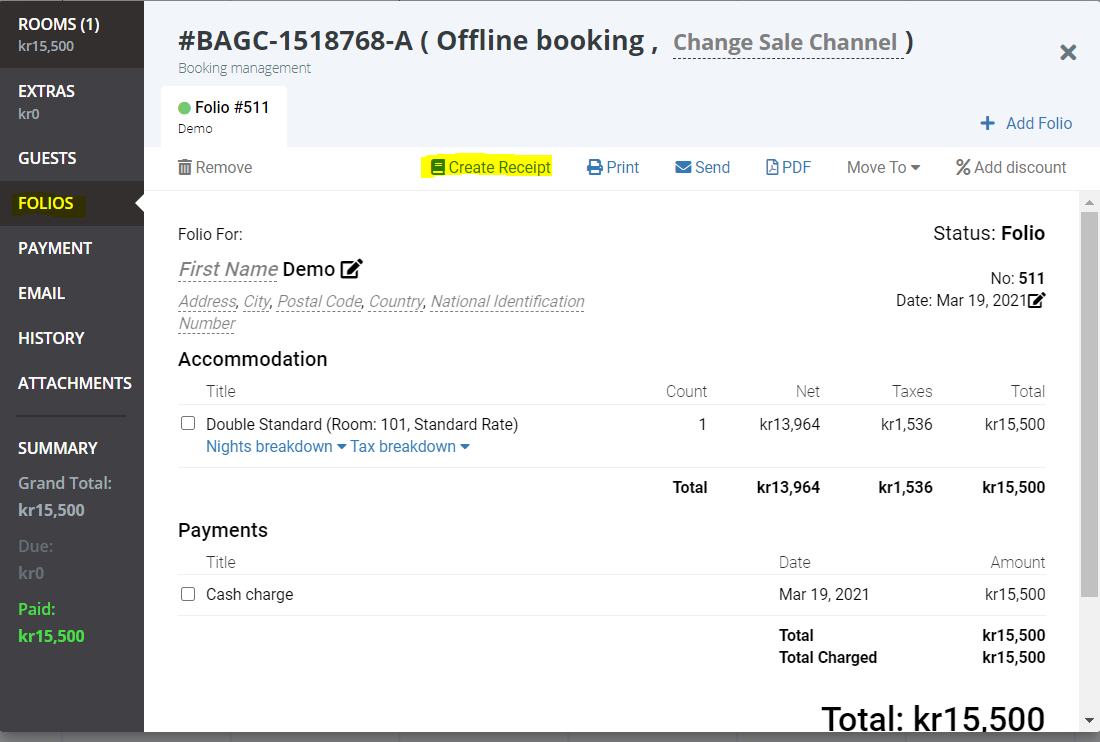
The flow of invoices from Booking Factory to DK
To send the sales invoices from Booking Factory to DK, you need to convert the folio into a receipt - this is done on the customer's booking card in the FOLIOS tab - if everything is correct on the sales invoice, click on Create Receipt
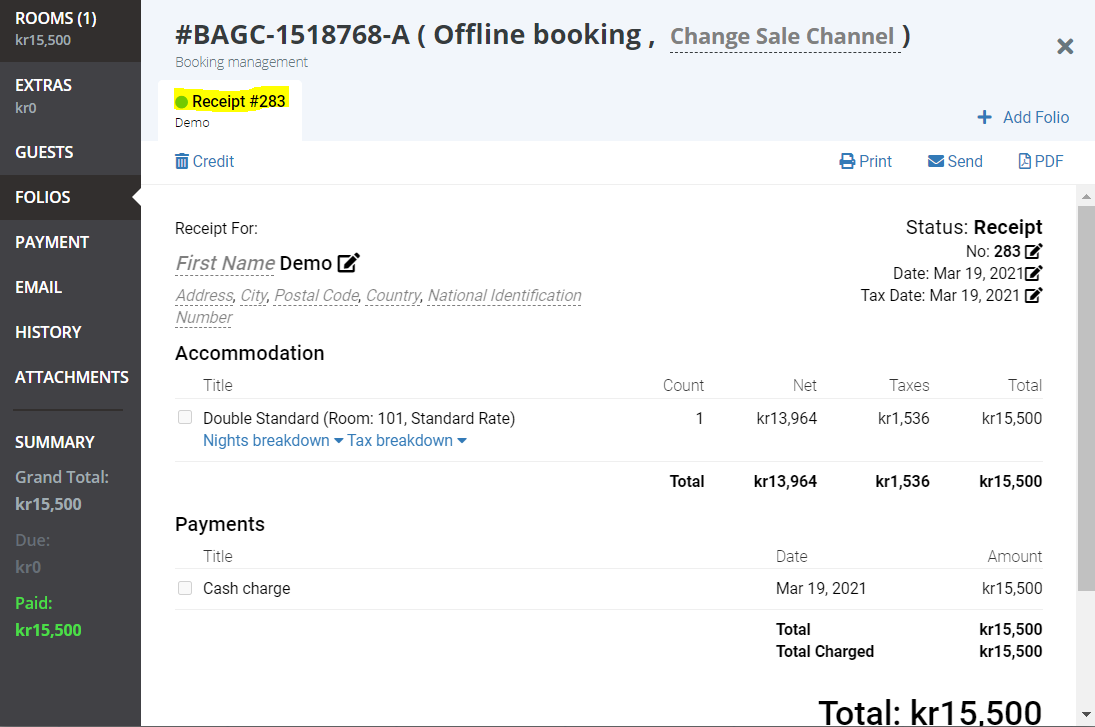
To view all the sales invoices sent to DK, go to Reports - Folio Report. If everything went correctly to DK, there is a green log dot at the accounting system sync status and the receipt should be in DK. If there is no dot, the sales invoice was not sent from Booking Factory to DK.
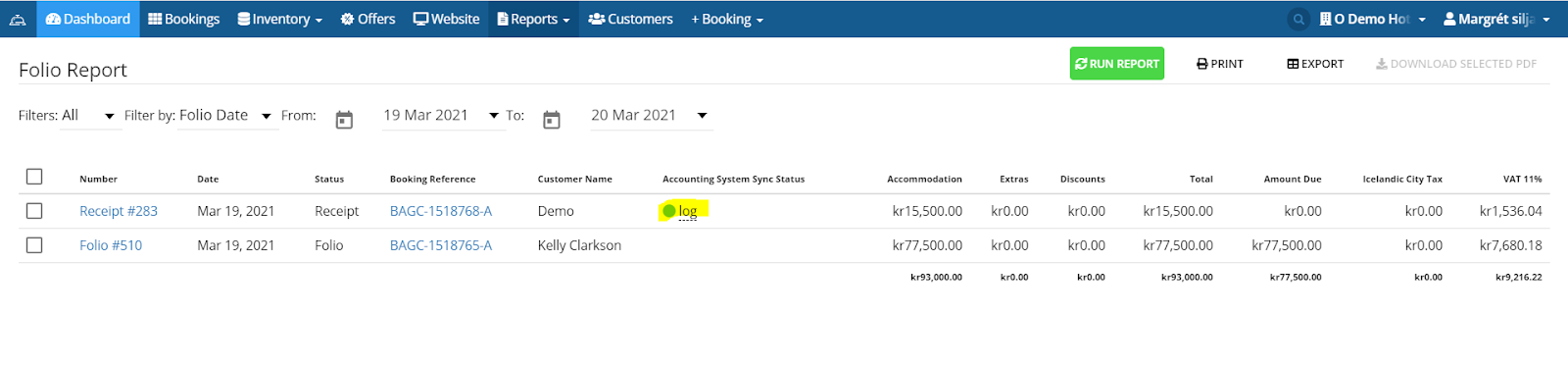
If a red log dot appears, there is an error that has occurred and you can click on the dot to see what the explanation is, then you can fix what was incorrectly set and then click on send accounting receipt again.
Was this article helpful?
That’s Great!
Thank you for your feedback
Sorry! We couldn't be helpful
Thank you for your feedback
Feedback sent
We appreciate your effort and will try to fix the article